
How to Stop Screen Recording on Mac
Recordings made with the Screenshot toolbar or QuickTime Player stop the same two ways: a button in the menu bar and a keyboard shortcut.
The short answer
Click the Stop button in the menu bar at the top of the screen, or press ⌘ ⌃ Esc (Command-Control-Esc). The recording then saves to your desktop, unless you chose another place under Options → Save to.
1. Click Stop in the menu bar
While a recording runs, a Stop button sits in the menu bar at the top right of the screen. Click it once and the recording ends.
Recording an app in full screen? Its menu bar is hidden. Move the pointer to the top edge of the screen to show it, or use the shortcut below.
2. Press Command-Control-Esc
Press ⌘ Command, ⌃ Control and Esc together. You don’t need to move the pointer to the menu bar first, so the end of your video stays clean.
3. Stop a QuickTime Player recording
In QuickTime Player, File → New Screen Recording opens the same Screenshot toolbar on current versions of macOS, so the same button and shortcut stop it. If your Mac shows QuickTime’s own Screen Recording window instead, stop it the same way. QuickTime then opens the recording, so you can play, edit or share it.
4. If the recording won’t stop
- You can’t see the Stop button.
- The menu bar may be hidden, by a full-screen app or because your Mac hides it automatically. Move the pointer to the top of the screen, or press Command-Control-Esc.
- The shortcut does nothing.
- Another app may use the same keys. Click the Stop button in the menu bar instead.
- Shift-Command-5 doesn’t open the toolbar.
- Check the shortcuts under System Settings → Keyboard → Keyboard Shortcuts → Screenshots. Apple lets you change them there.
- You pressed Esc and nothing was recorded.
- Pressing Esc before you click Record cancels the recording. Start again with Shift-Command-5.
5. What happens after you stop
By default, a thumbnail of the recording shows in the bottom-right corner for a few seconds. Click it to trim or share the recording, swipe it to the right to save it at once, or leave it and it saves by itself.
The file is a .mov named “Screen Recording” with the date and time, saved to your desktop unless you changed it under Options → Save to. Can’t find it? See where screen recordings go on Mac.
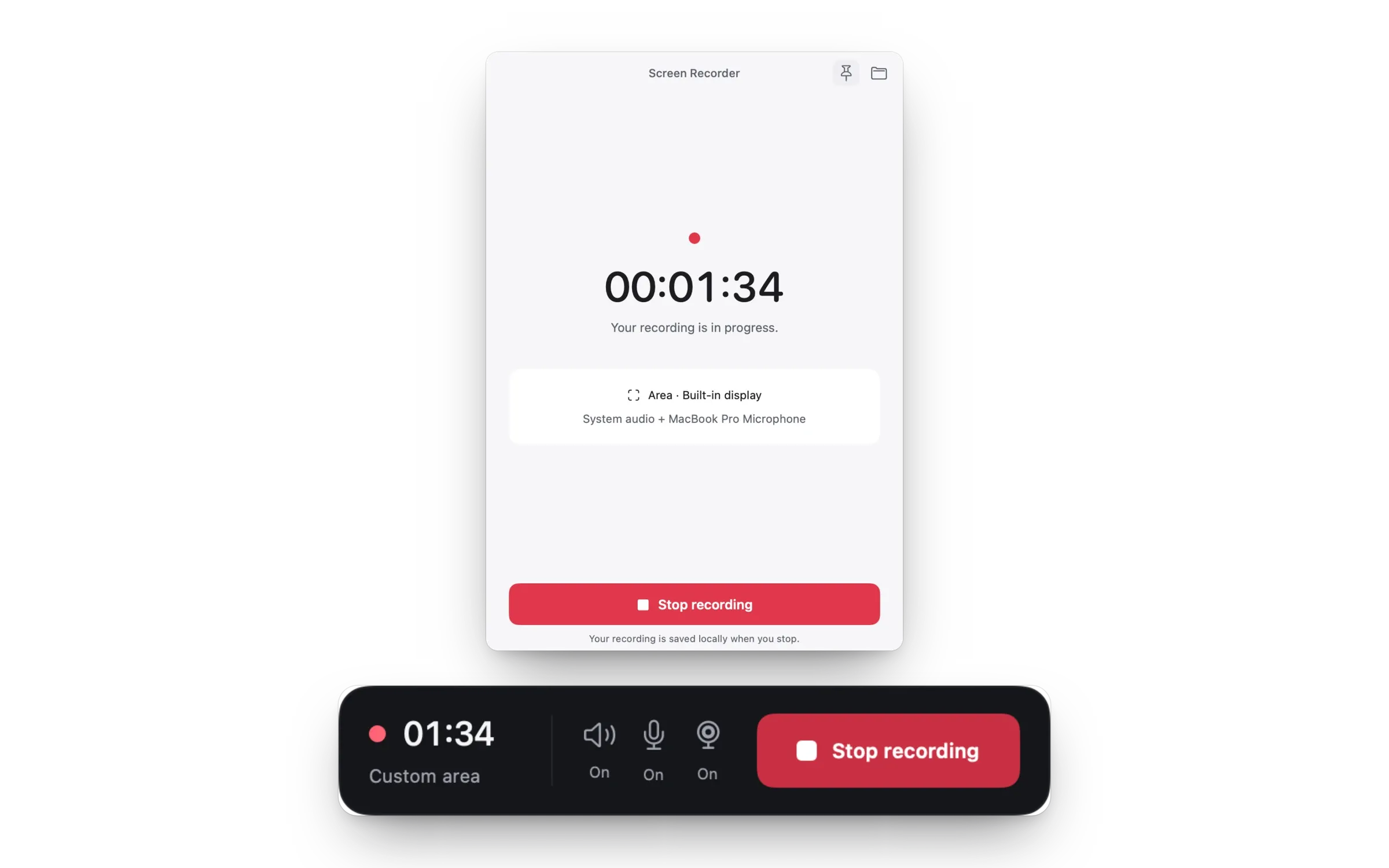
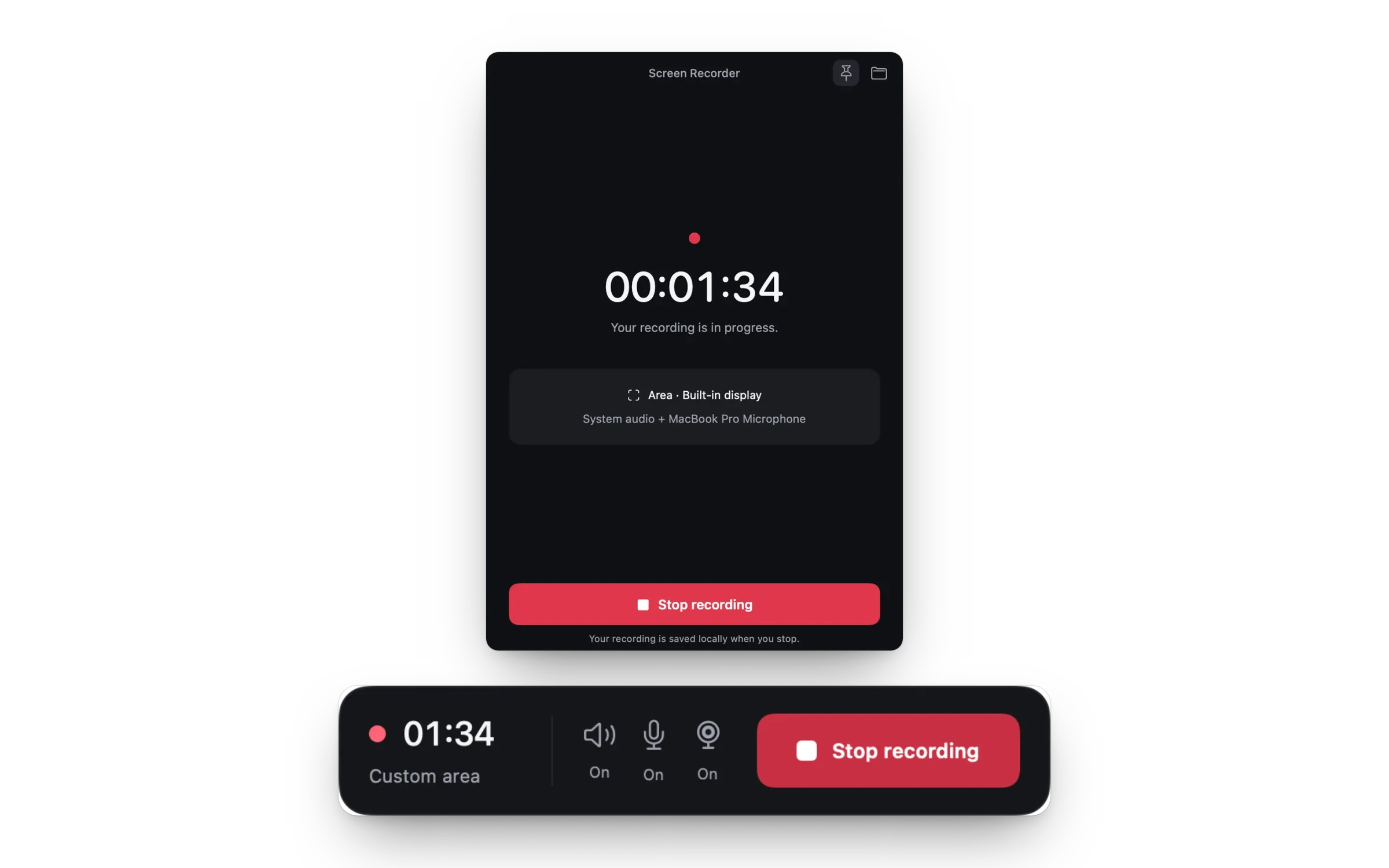
6. Stop a recording in Mac Screen Recorder
Click Stop recording in the small floating bar, in the recorder window or in the app’s menu bar menu. With the app in front, ⇧ ⌘ .(Shift-Command-Period) stops it too.
The recording is saved to Movies → Recordings, unless you chose another folder. The Recording saved window shows where it went, with a Show in Finder button.
Common questions
What is the shortcut to stop screen recording on Mac?
Command-Control-Esc. It stops recordings started from the Screenshot toolbar (Shift-Command-5) and from QuickTime Player.
Does stopping a screen recording save it?
Yes. Once the thumbnail goes away, the file is saved to the place set under Options → Save to: your desktop, unless you changed it.
How do I cancel a recording before it starts?
Press Esc before you click Record.