

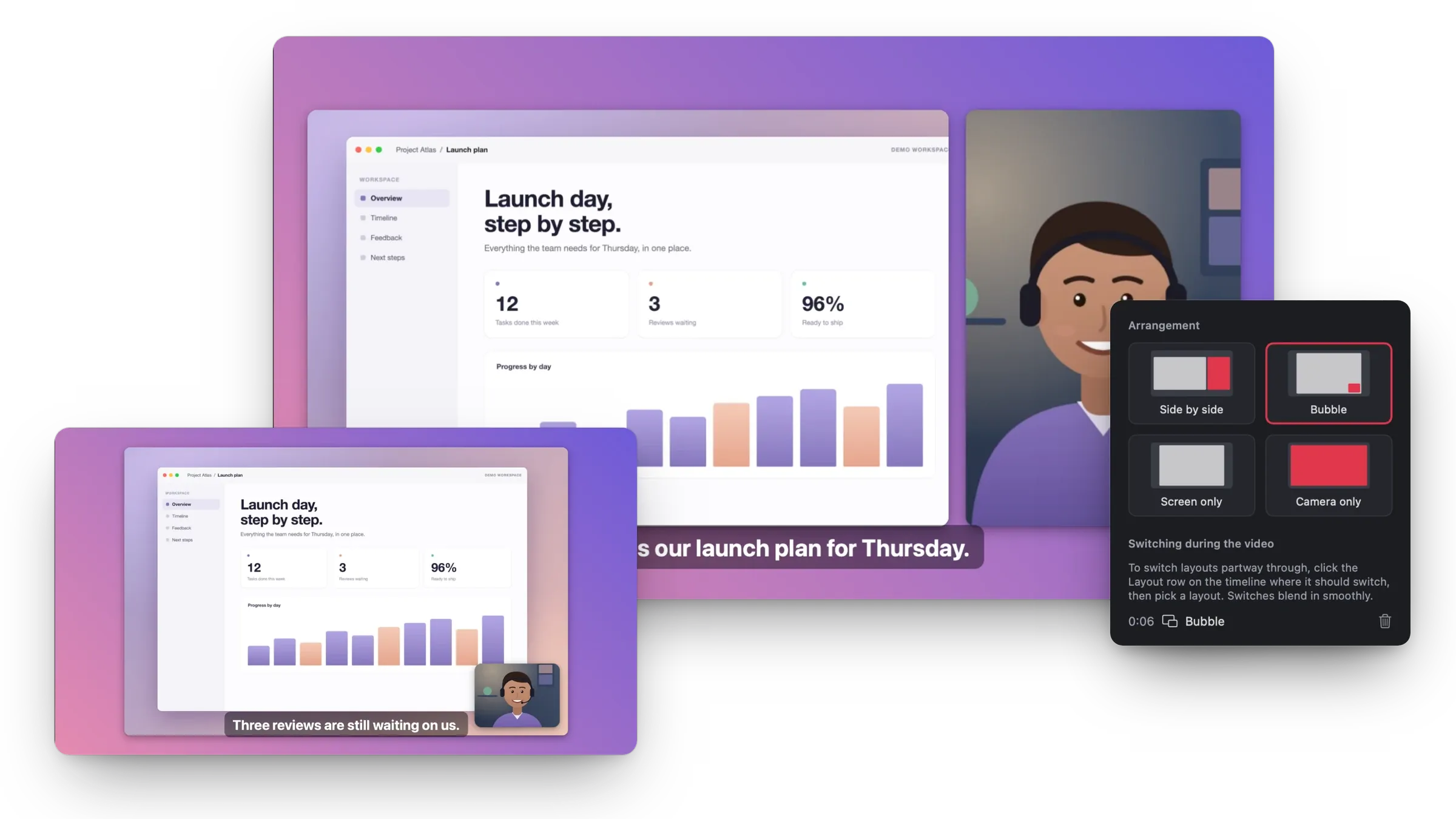
Layouts that switch during the video
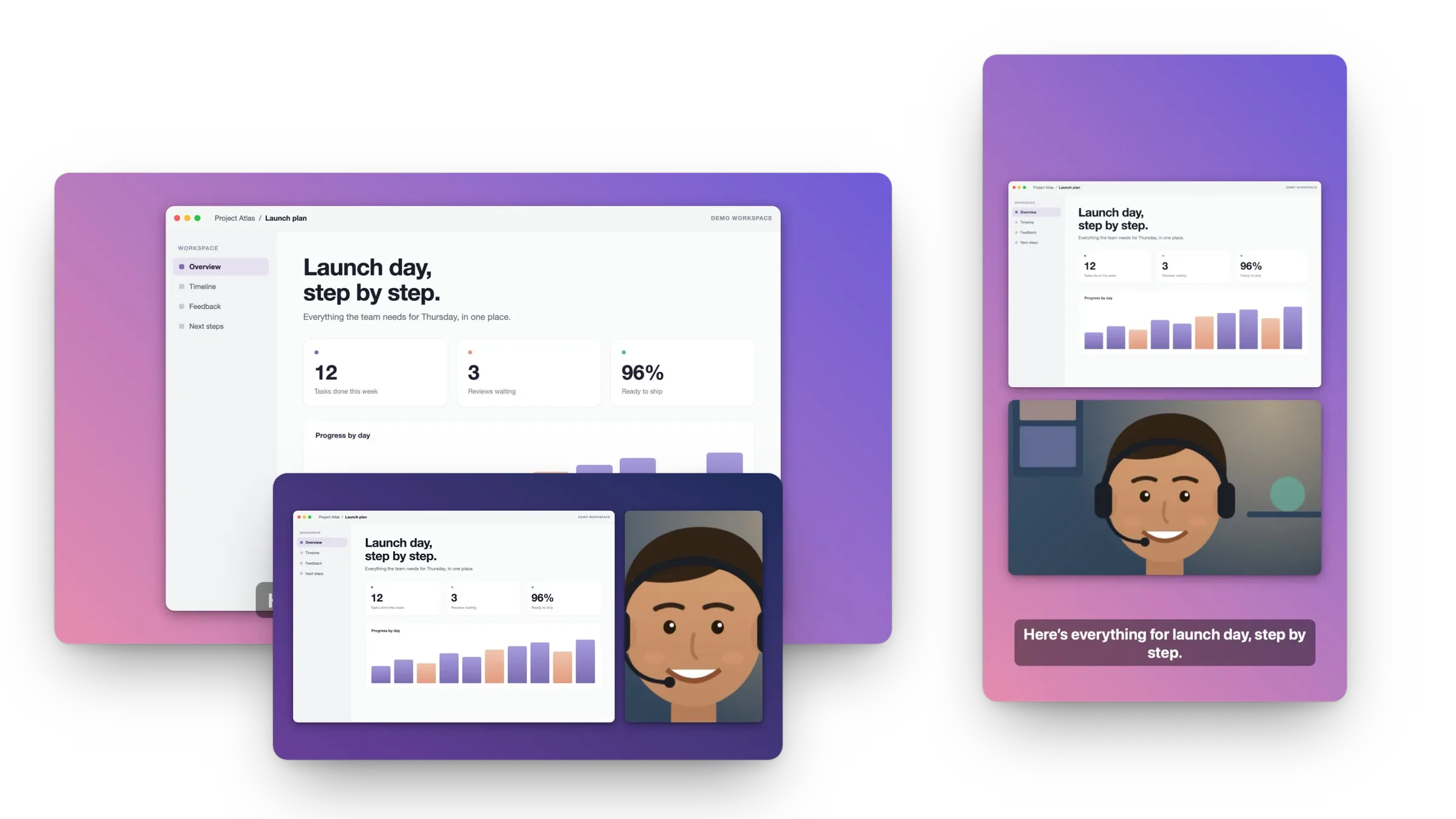
Camera bubble, side by side, screen only or camera only. Switch between them on the timeline and the change blends in.
 mac screen recorderDownload for Mac
Record your screen, a window or any area with your Mac's sound, your microphone and your webcam. Then edit it right here: layouts, auto zoom, captions, blur and cuts. Export MP4 or GIF, up to 4K.
The recorder and the editor, on the Mac App Store or as a direct download.
Pick a display, one app window or a frame you drag. A window recording shows the app's popovers and panels, even when other windows cover it.
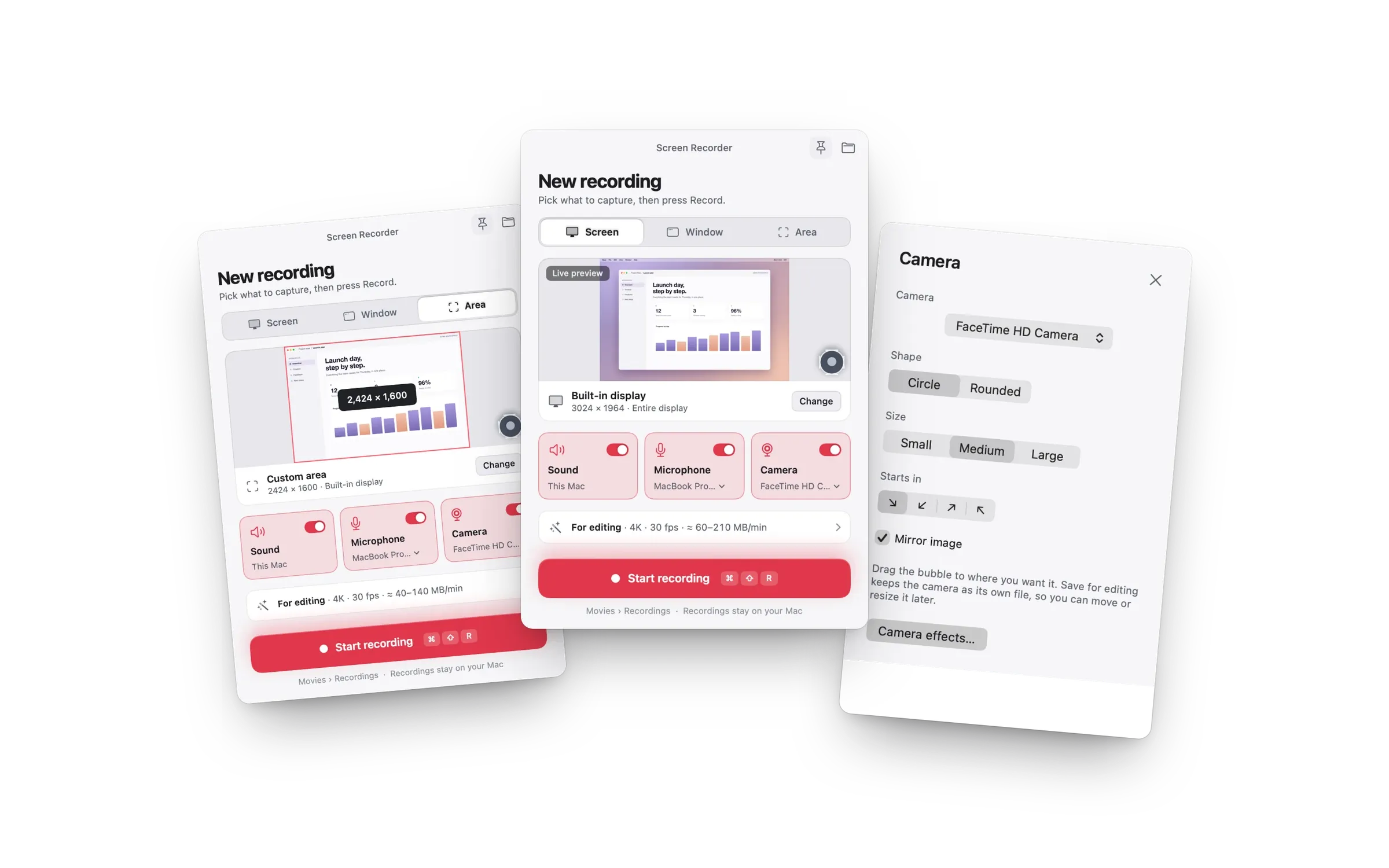
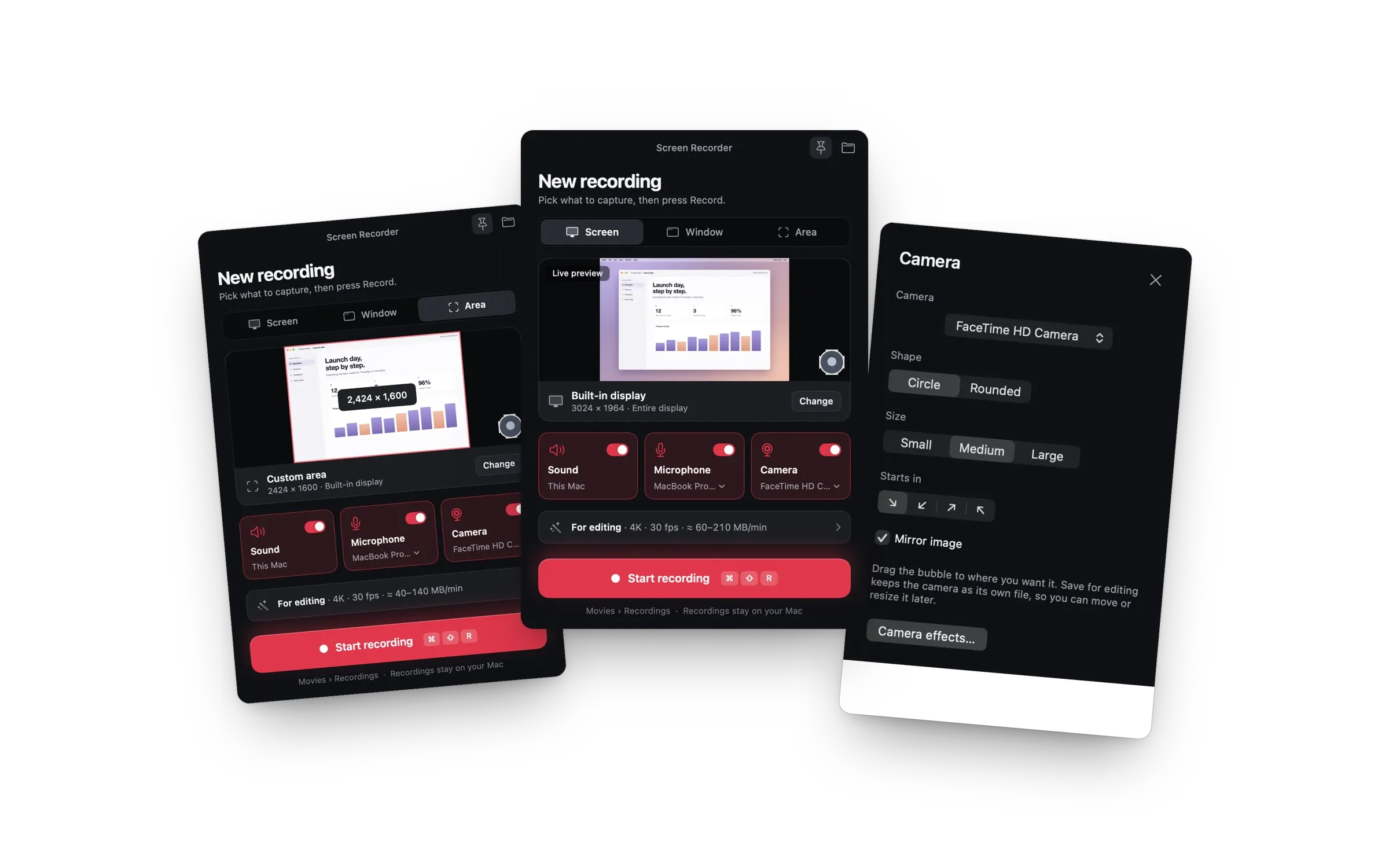
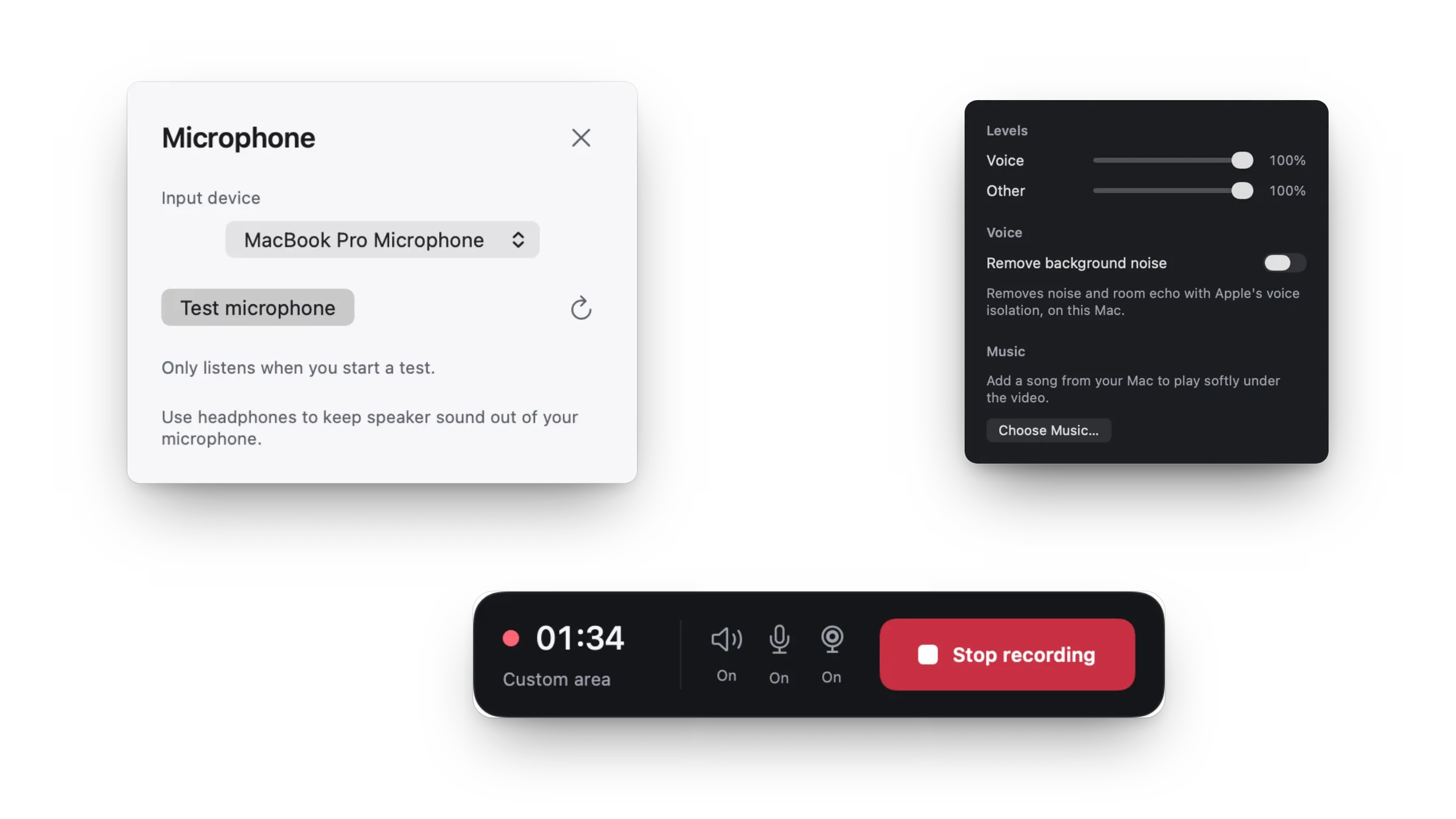
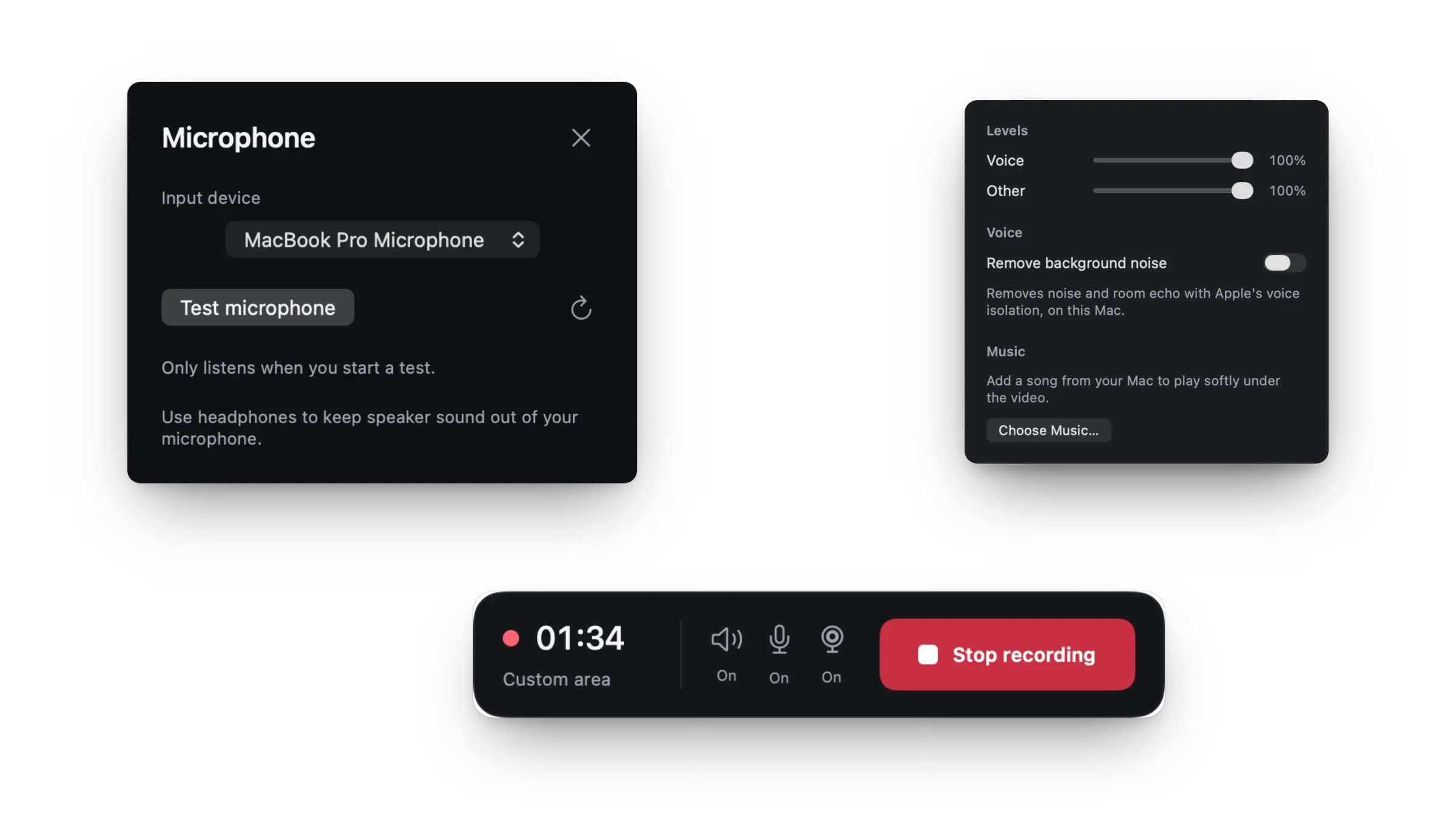
Record what your Mac plays, just the recorded app's sound, your microphone, or both, in sync with the picture. No extra audio driver.
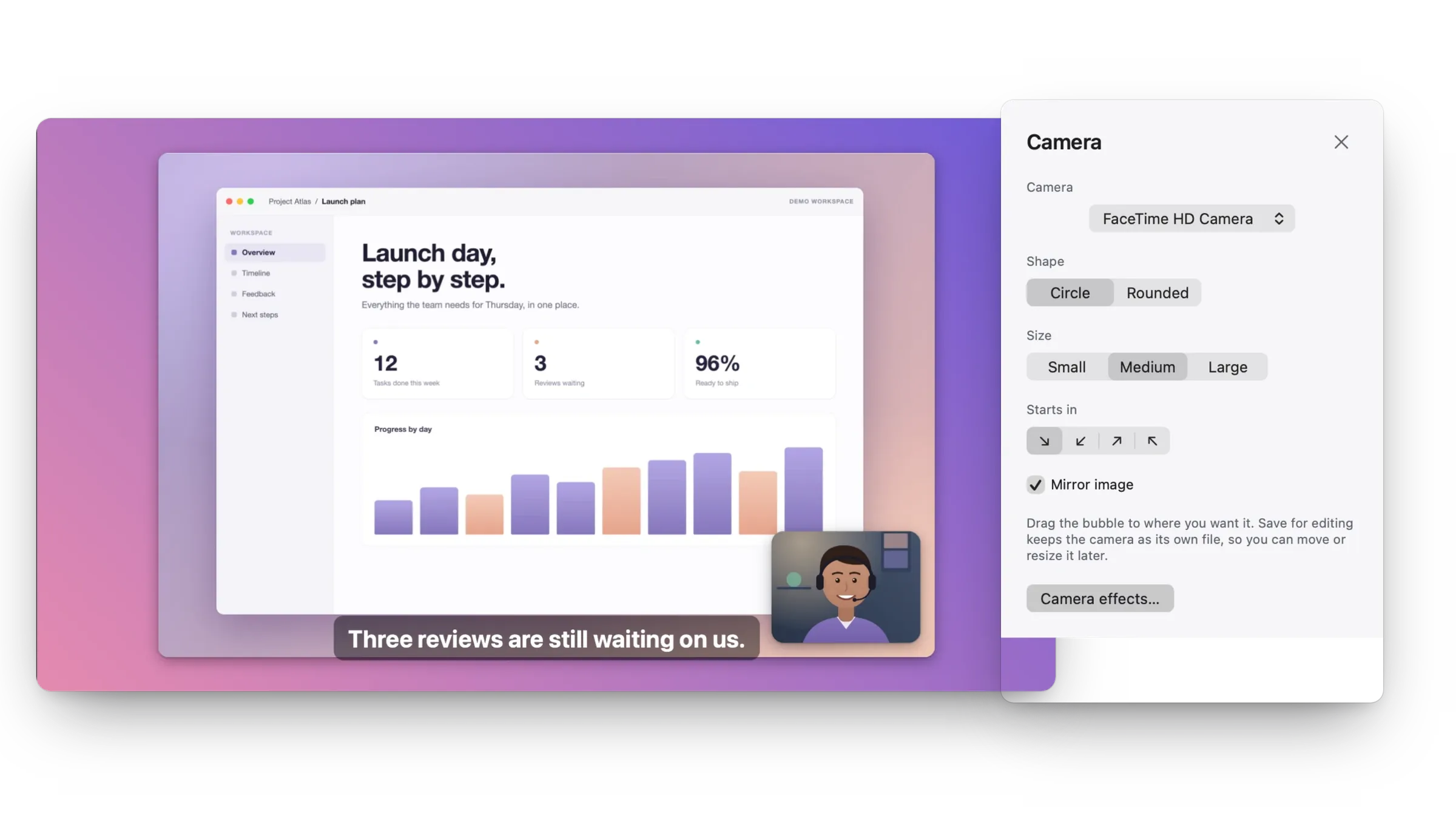
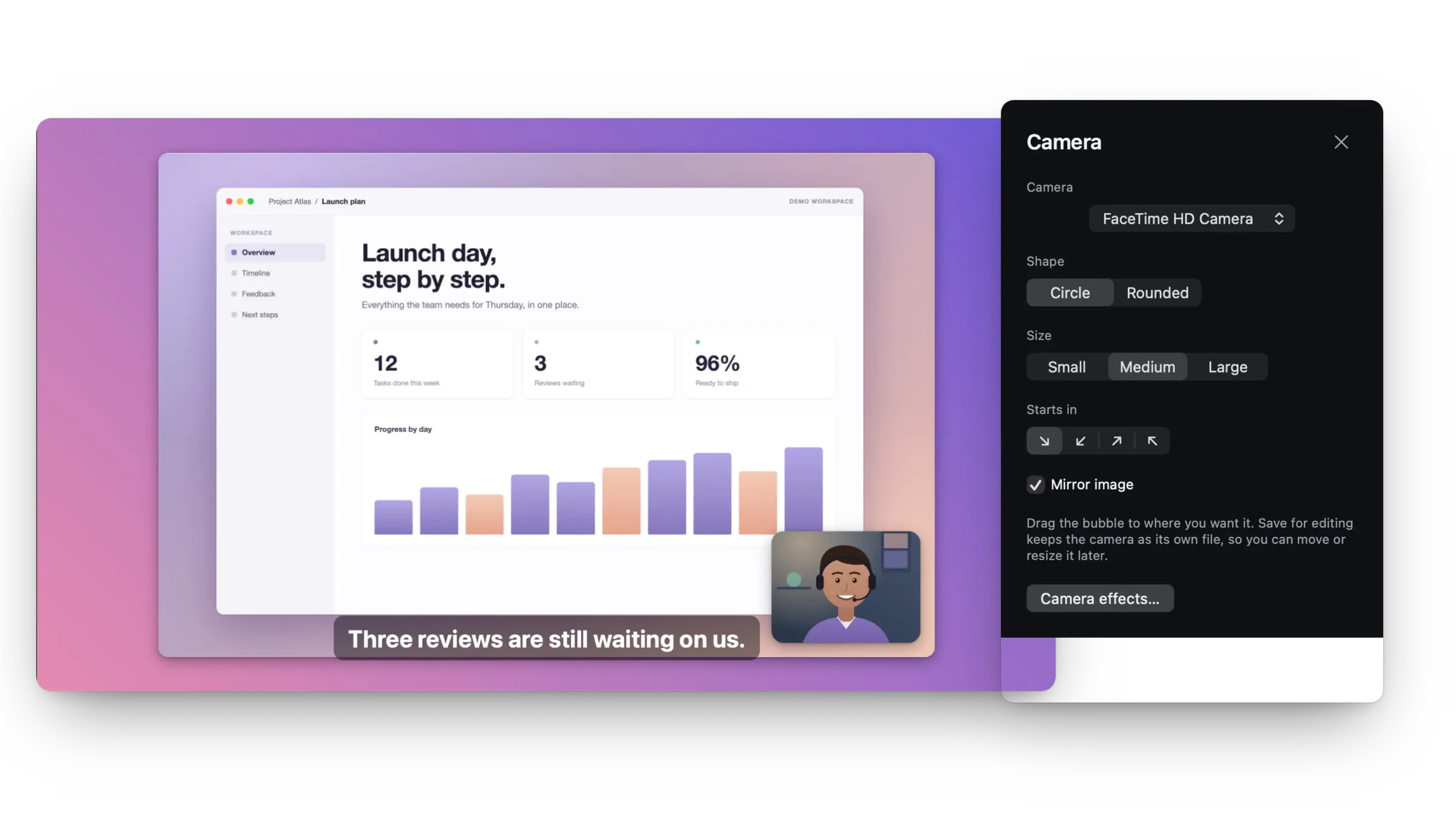
Add your camera while you record and choose its shape, size and corner. Save for editing keeps the camera as its own video, so you can change the layout later.
Open the editor from the saved recording, or choose File › Edit a Recording… to open any video. Every change shows right away, and you can undo anything.
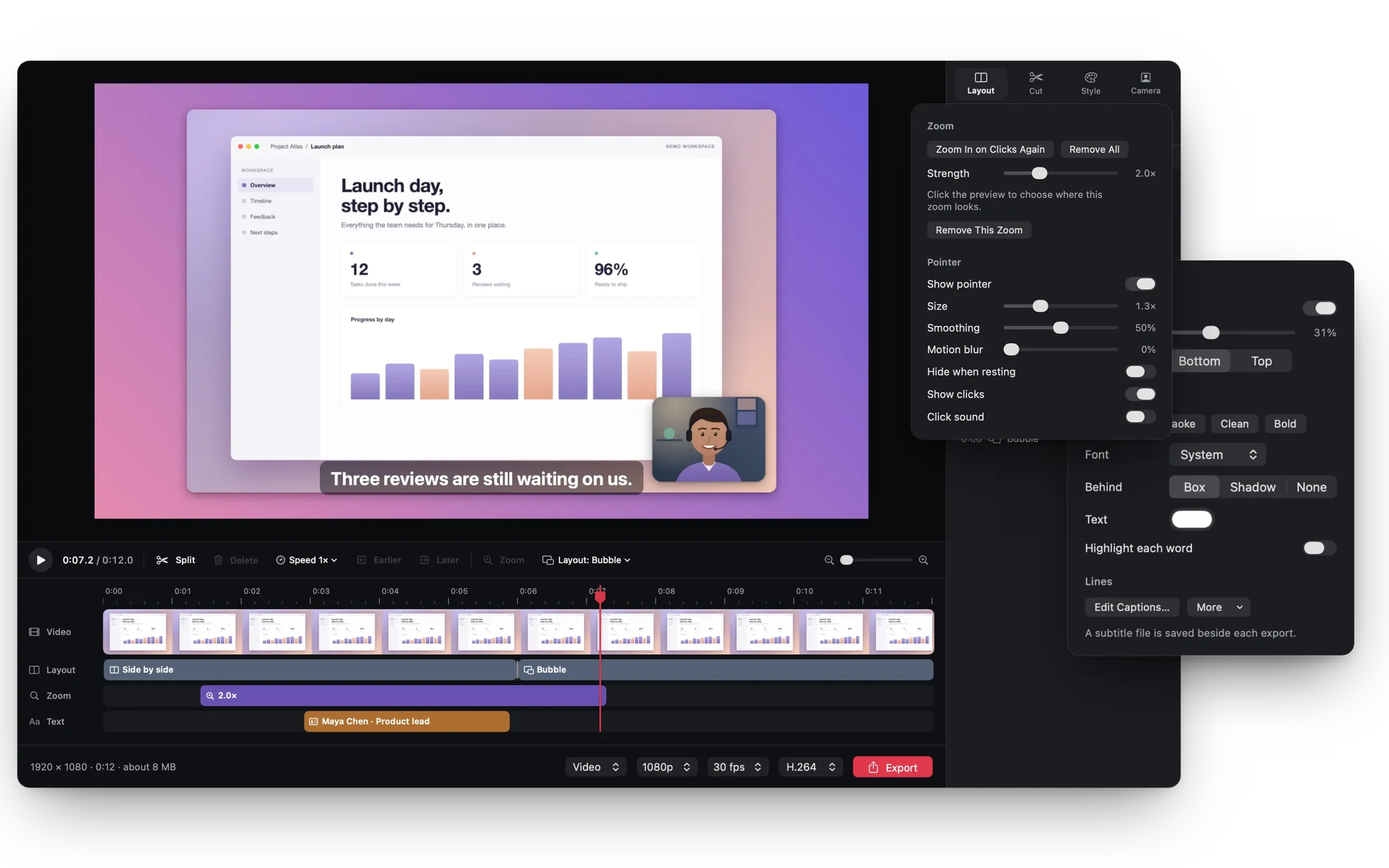
Camera bubble, side by side, screen only or camera only. Switch between them on the timeline and the change blends in.
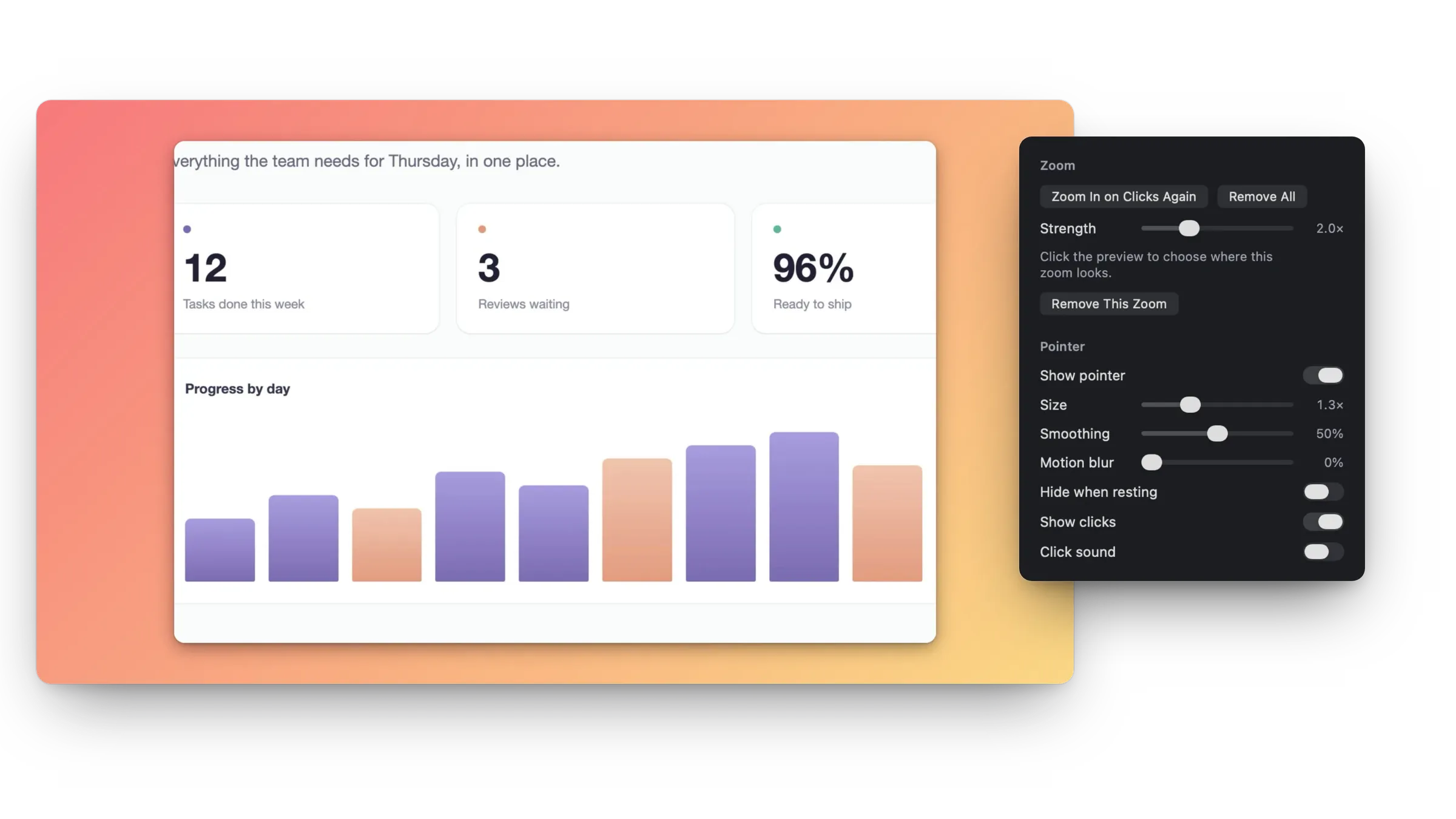
Zoom in on any part of the screen, or automatically wherever you click, eased in and out. Restyle the pointer: size, smoothing, motion blur and click sounds.
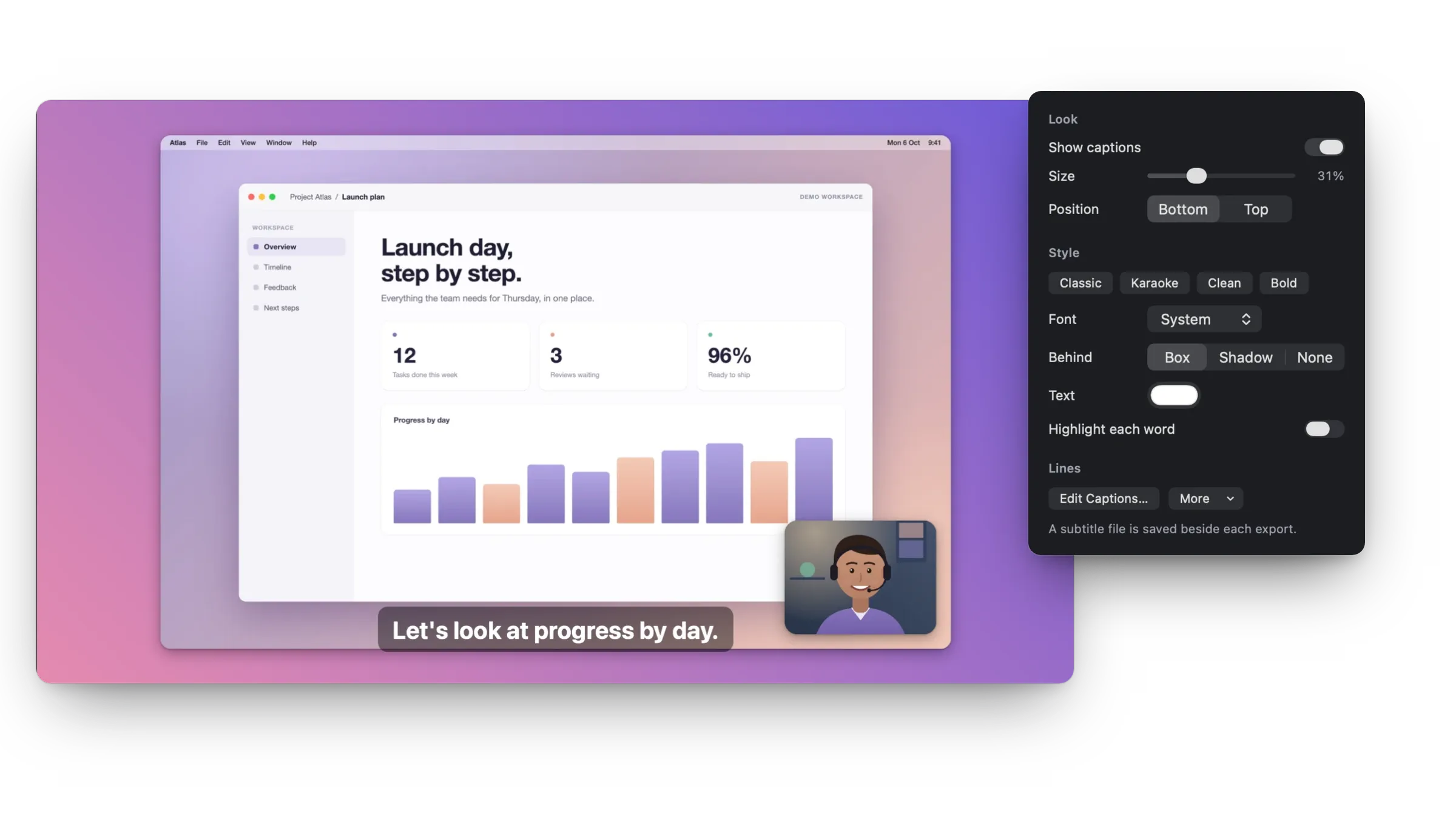
Captions come from what's said in the recording, your voice and the app's sound, recognized on your Mac. Edit them, pick a style, highlight each word, and get an .srt file with every export.
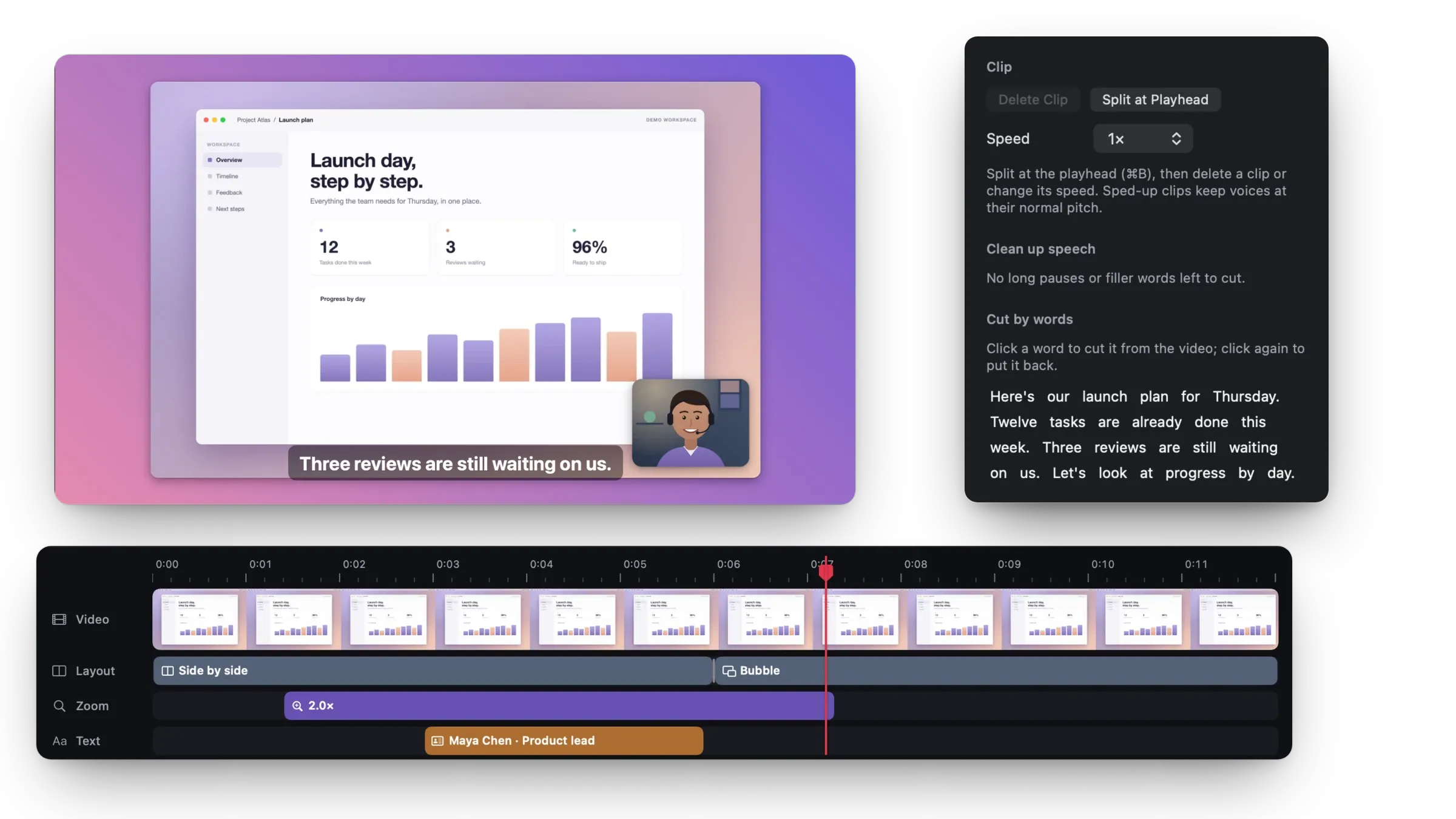
Cut long pauses and filler words in one go, or click words in the transcript. Trim, split, reorder and delete clips, and change the speed of any part.
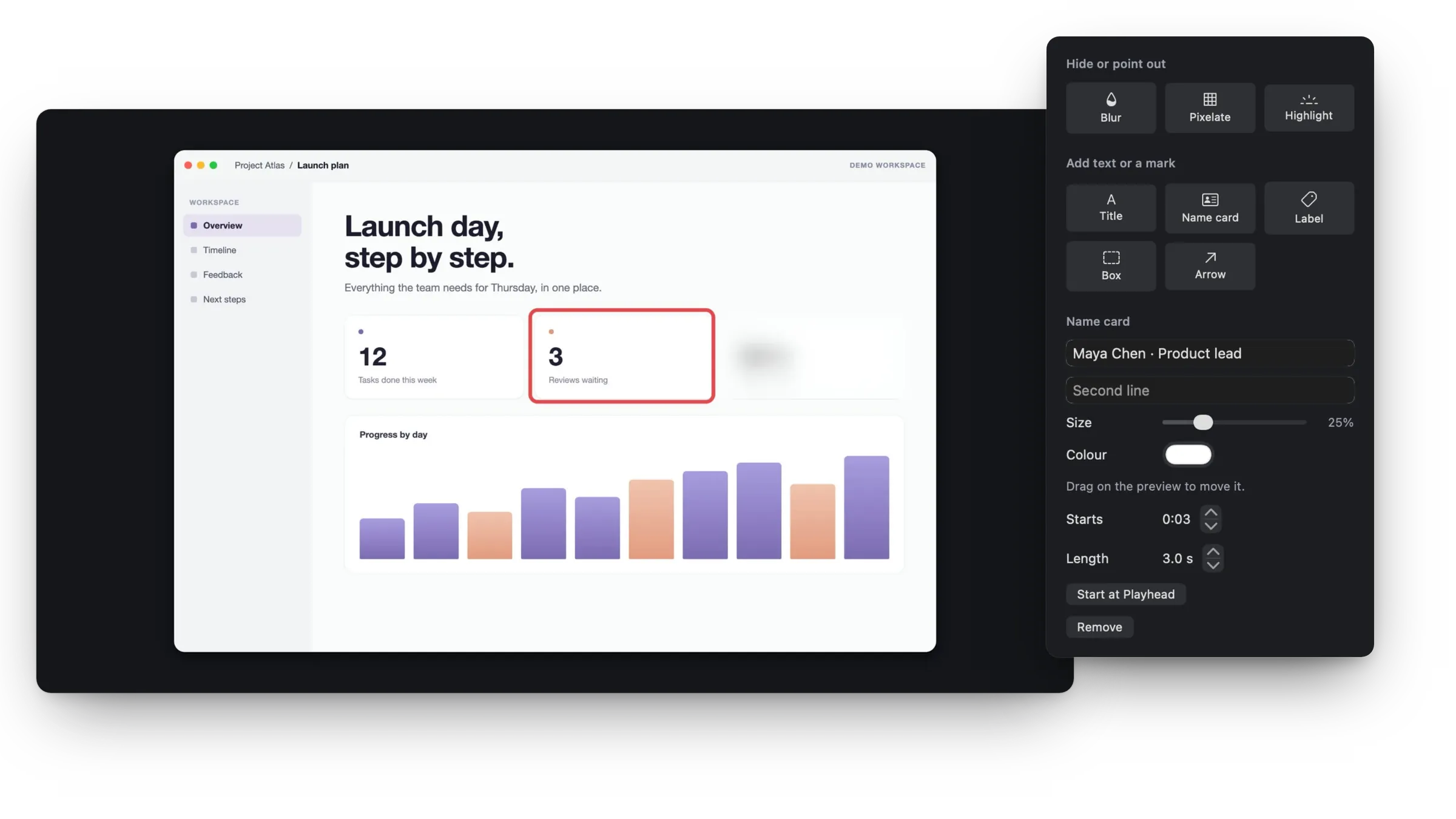
Blur or pixelate private details, highlight one area, and add titles, name cards, labels, boxes and arrows.
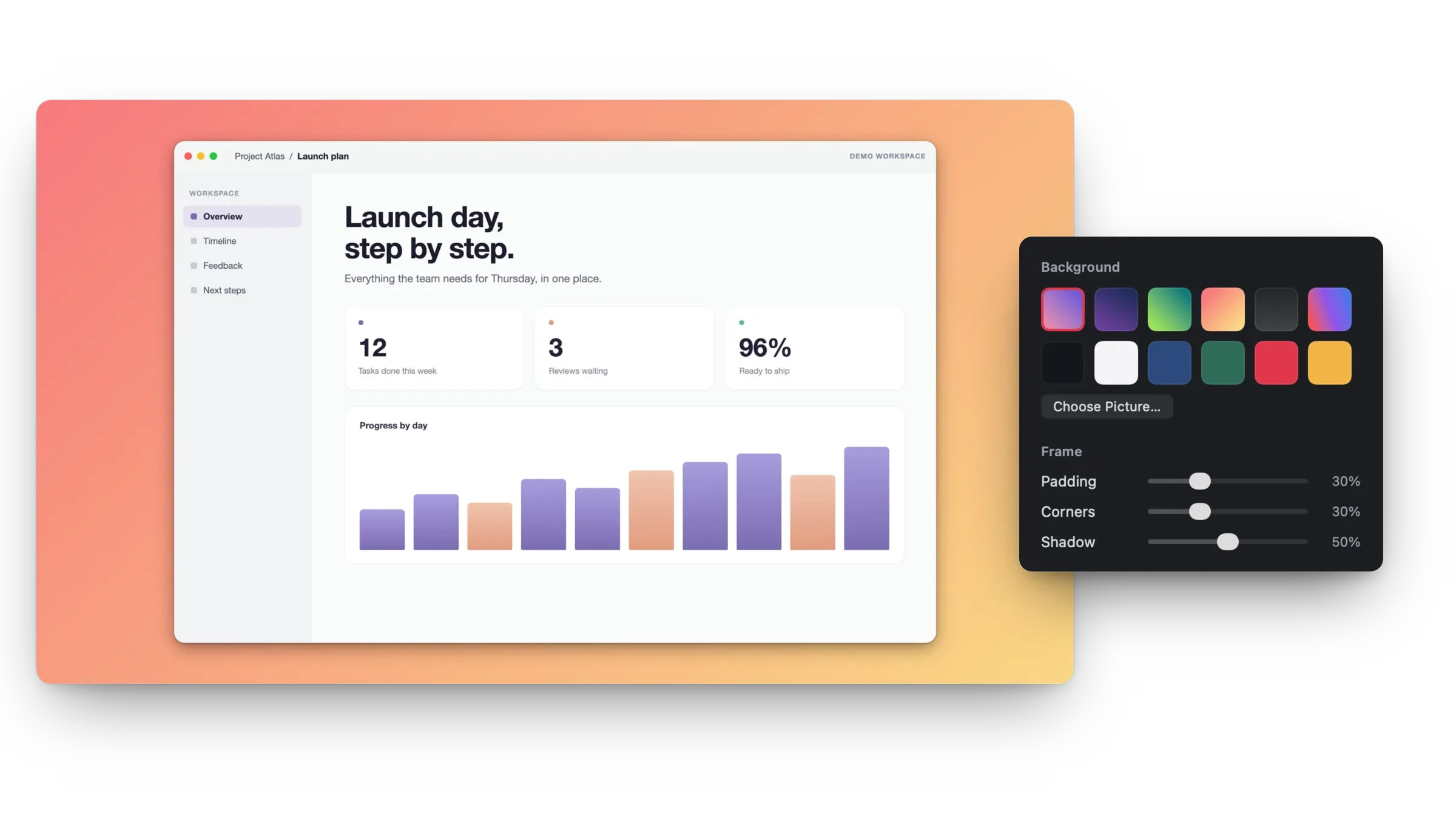
Put the recording on a color, a gradient or your own picture, with padding, rounded corners and a soft shadow.
Add music from your own files, with fades, and remove background noise from voice-overs with Apple's voice isolation.
Every edit can be undone. Recordings saved for editing keep the video, camera, pointer and each sound apart until you export.
16:9 for YouTube, 9:16 for Reels, Shorts and TikTok, 1:1 or 4:5 for posts. Captions are saved as a subtitle file next to the video.
See the estimated size per minute before you record.
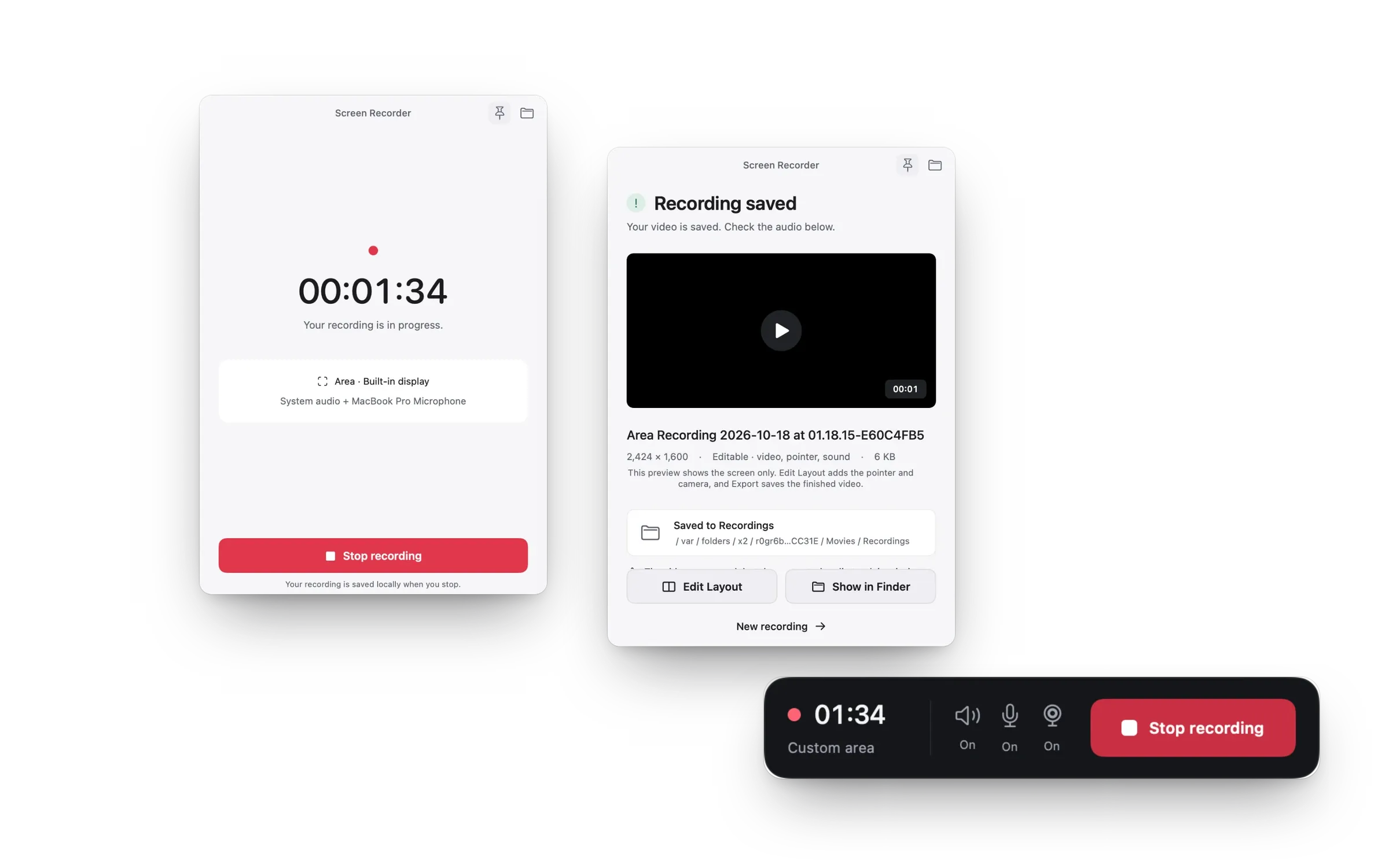
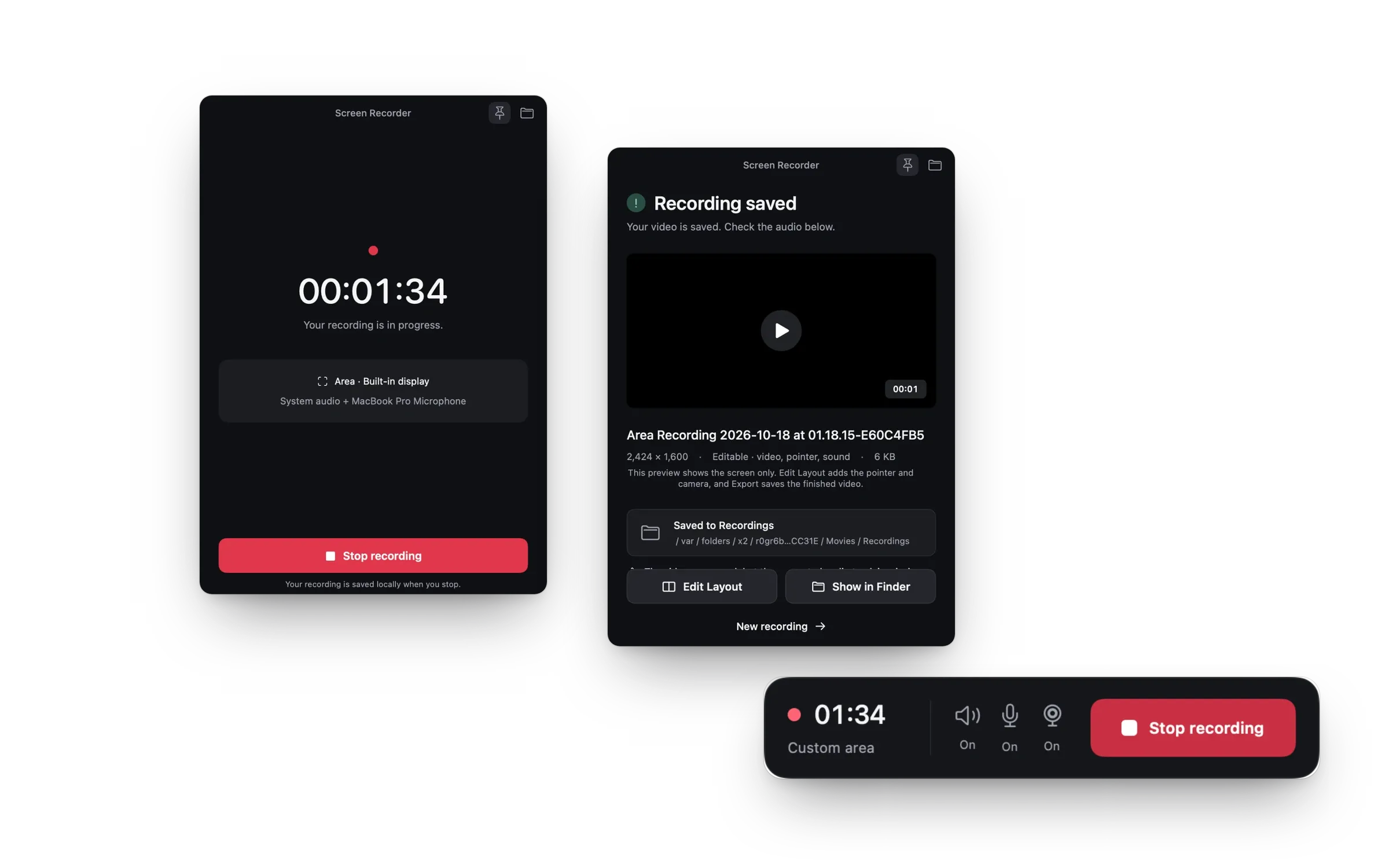
A small floating bar with the timer and Stop, menu bar controls and a Stop shortcut. Keep the recorder on top while you work. If a recording stops on its own, the app tells you why.
Turn on Allow local automation, and assistants that support the Model Context Protocol (MCP) can start and stop recordings and get the saved video's location. It's off until you turn it on, works only on your Mac, and never takes over a recording you started.
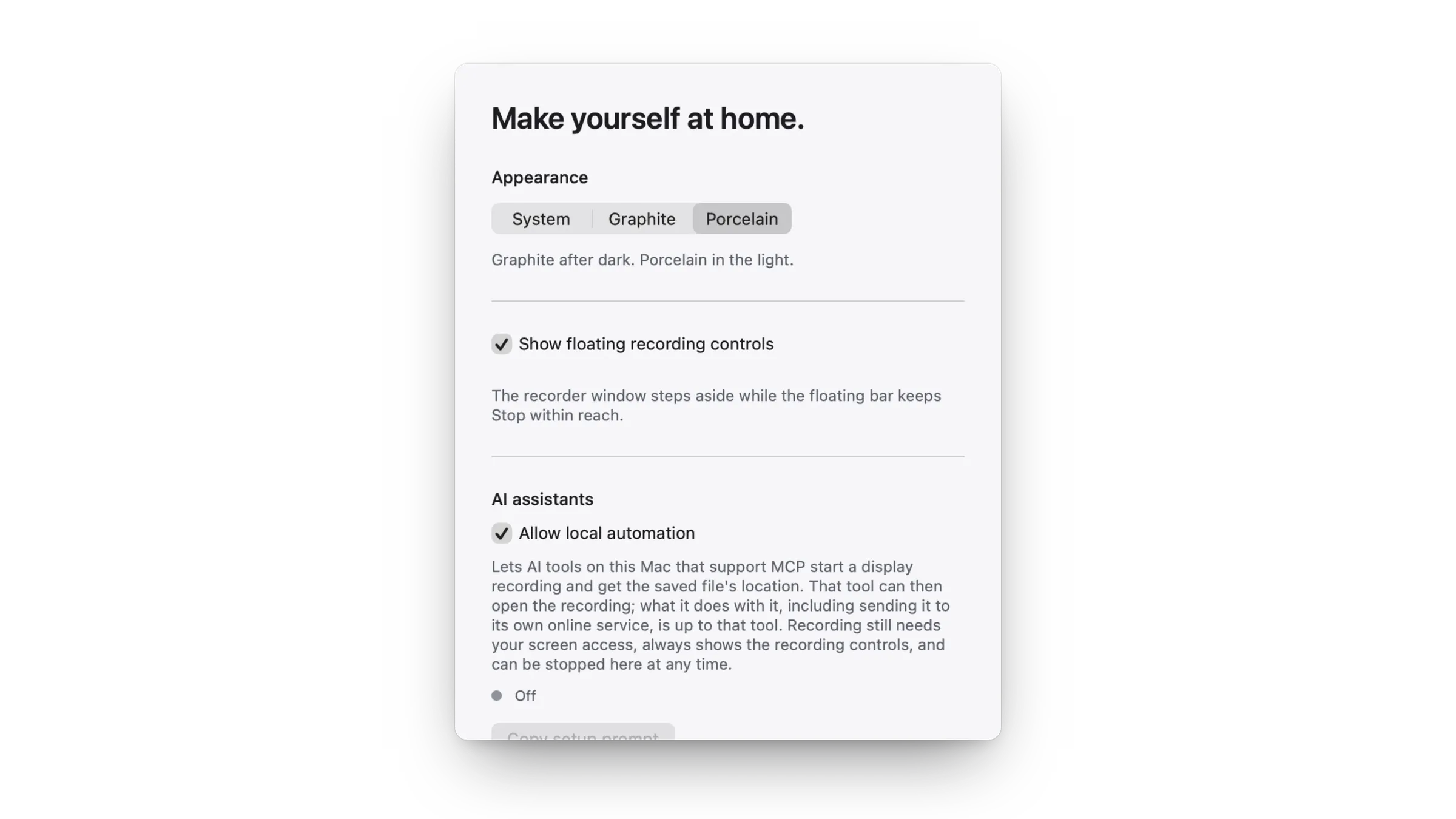
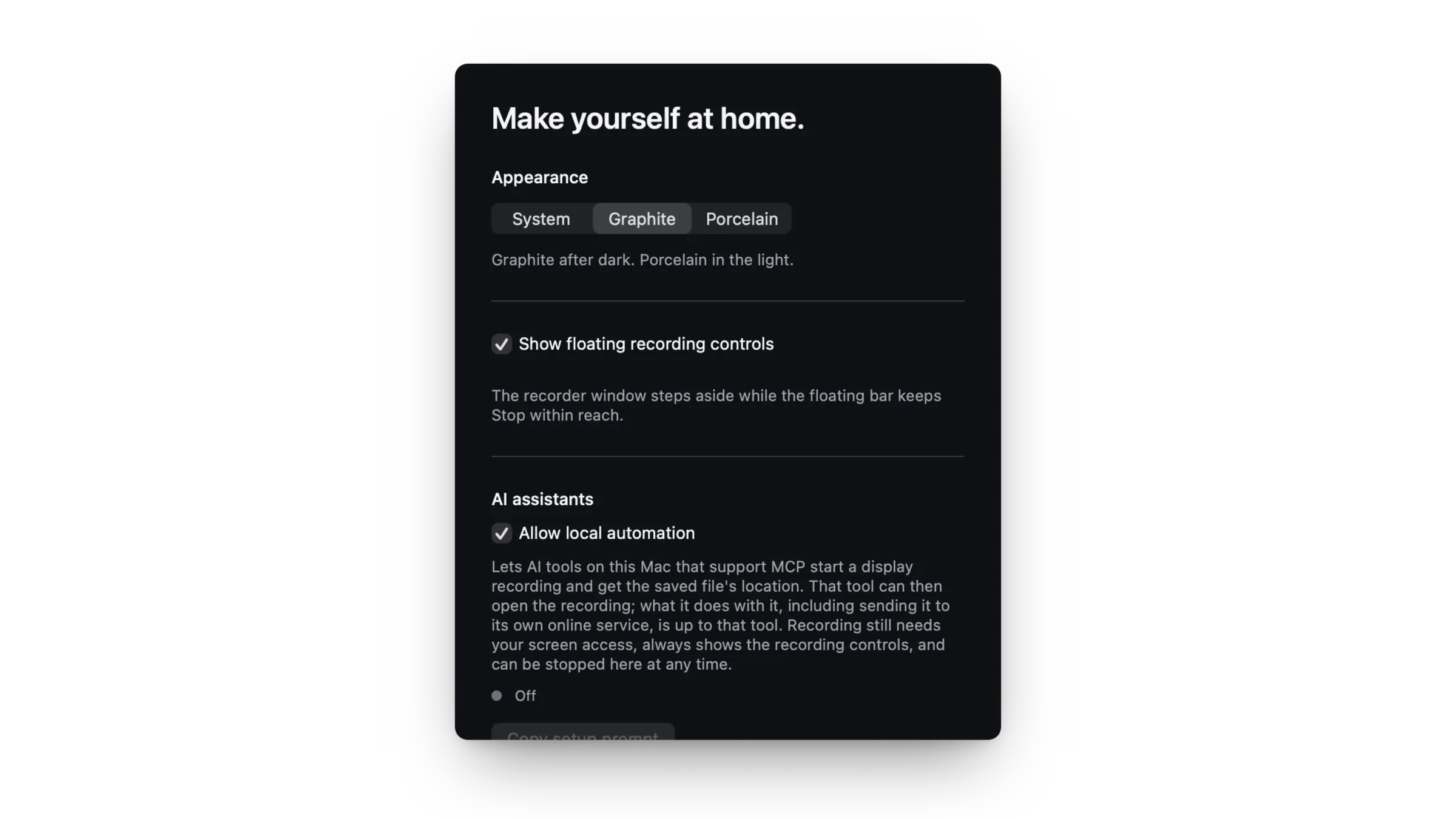
No account, no ads, no tracking. Recordings and edited videos stay on your Mac, captions and voice cleanup run on your Mac, and the App Store privacy label reads “Data Not Collected”.
Yes. It records what your Mac plays without an extra driver, and your microphone if you want, in sync with the picture.
Yes. Add your camera in a bubble while you record. With Save for editing, the camera is kept as its own video, so you can change the layout later.
Yes. The editor can zoom in on each click, eased in and out, or you can zoom in on any part of the screen by hand.
Yes. Export a GIF, or an MP4 in H.264 or HEVC up to 4K at 60 fps, in 16:9, 9:16, 1:1 or 4:5.
No. Your video is exported exactly as you made it, as long as you like.
Version 1.3 and later, on the Mac App Store and as the direct download on this site.
For every Mac with Apple silicon. Set up in a minute.