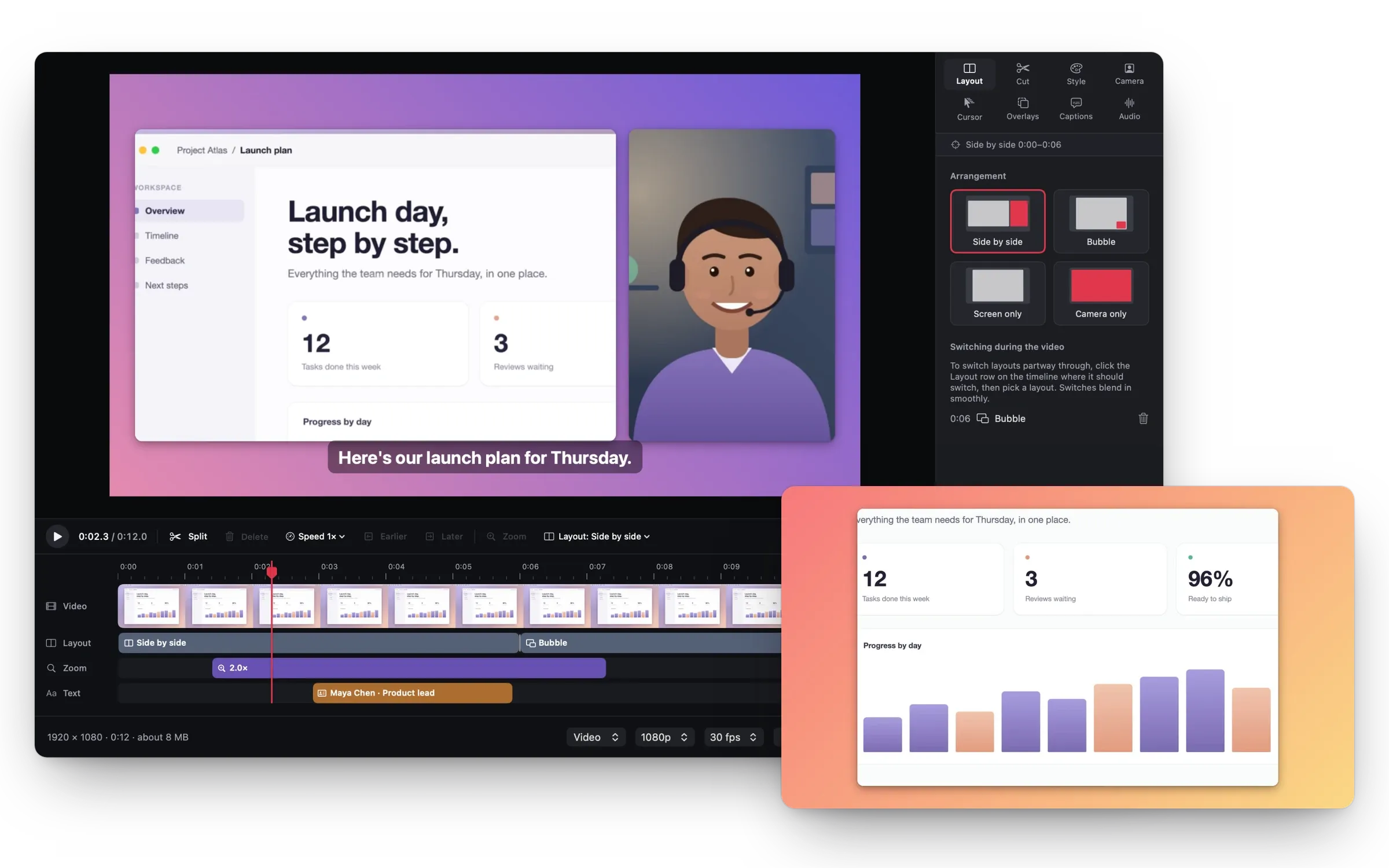
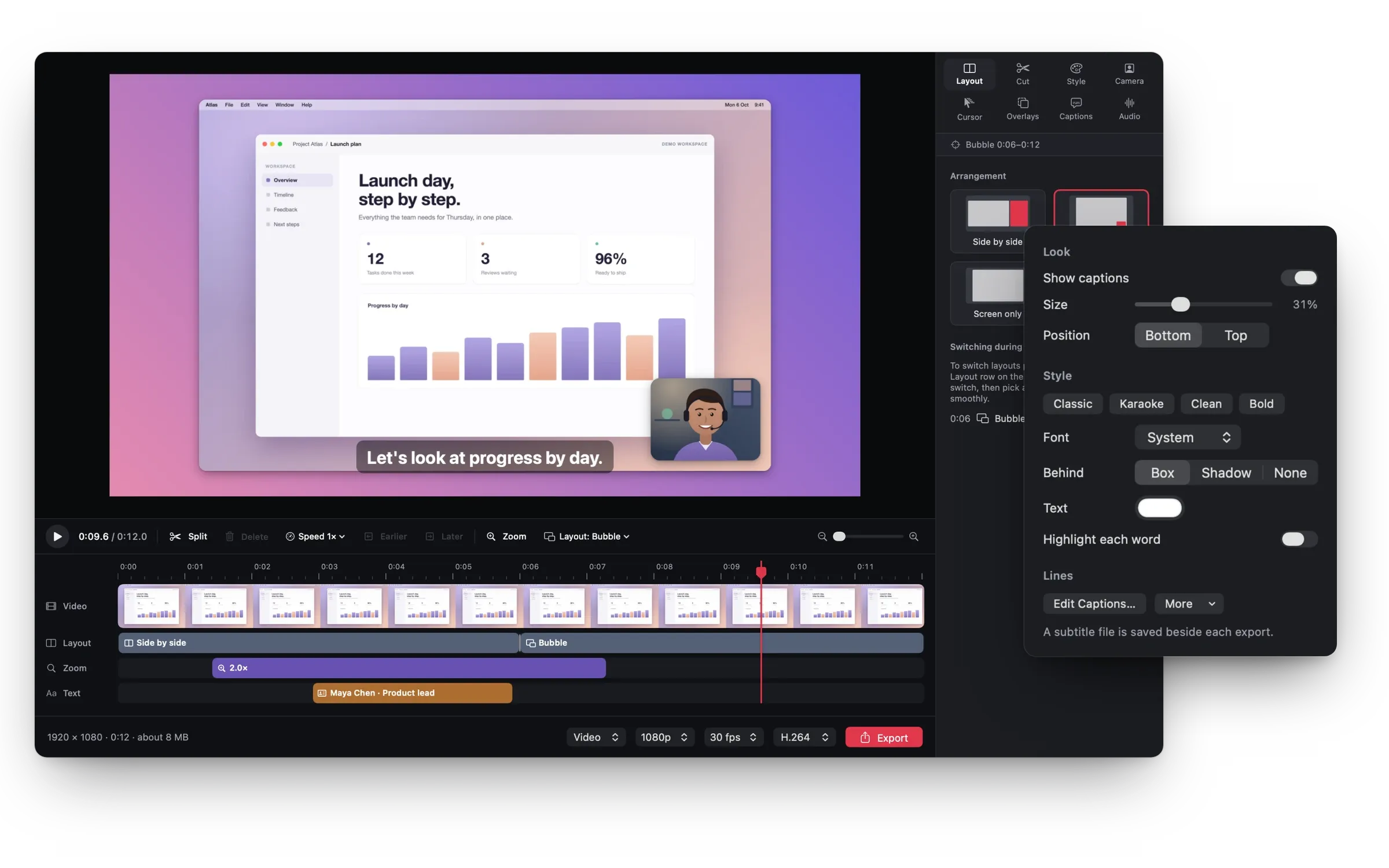
How to prepare your Mac for a screen recording
What to close, how to keep private details and notifications out, and a short test take.
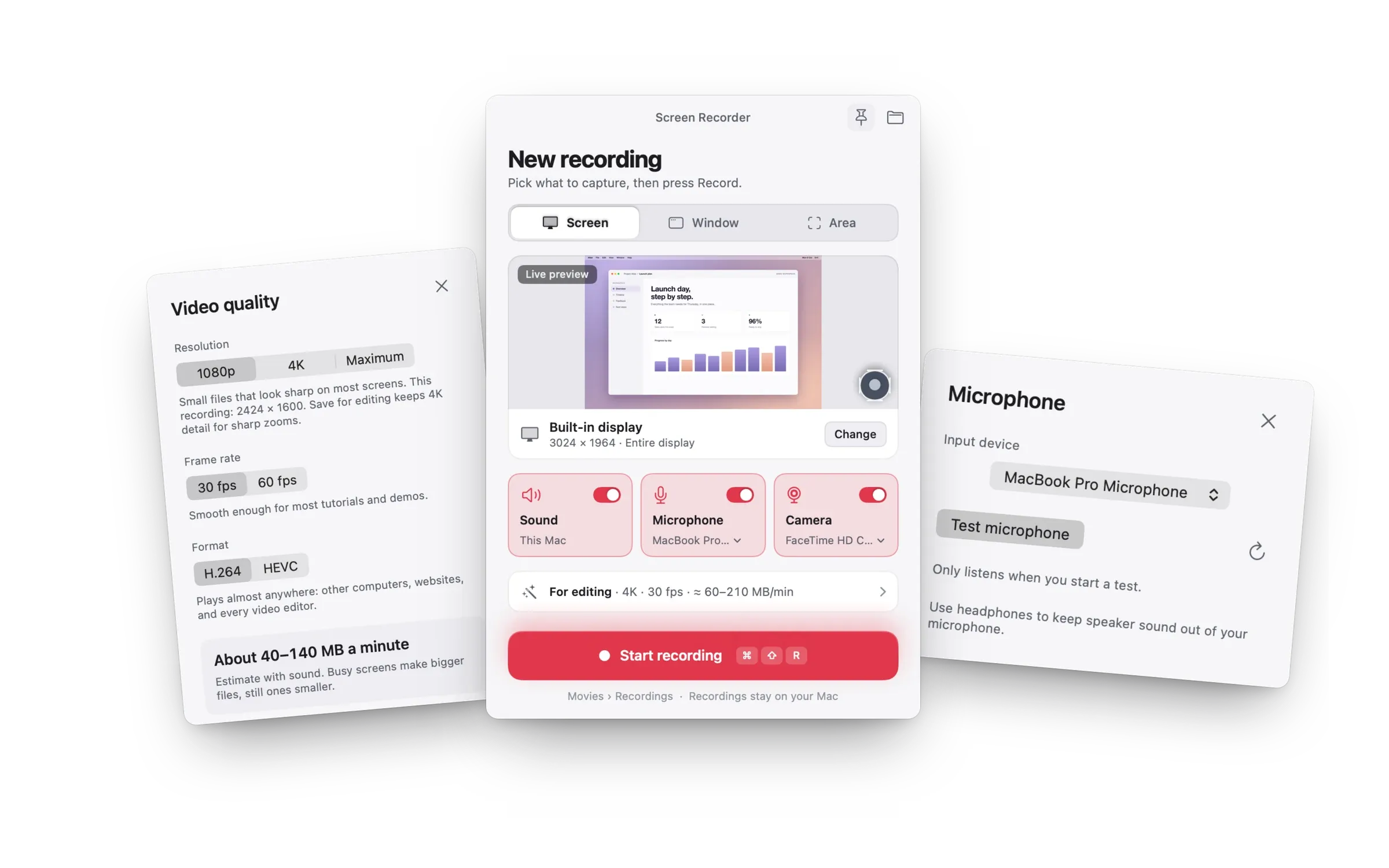
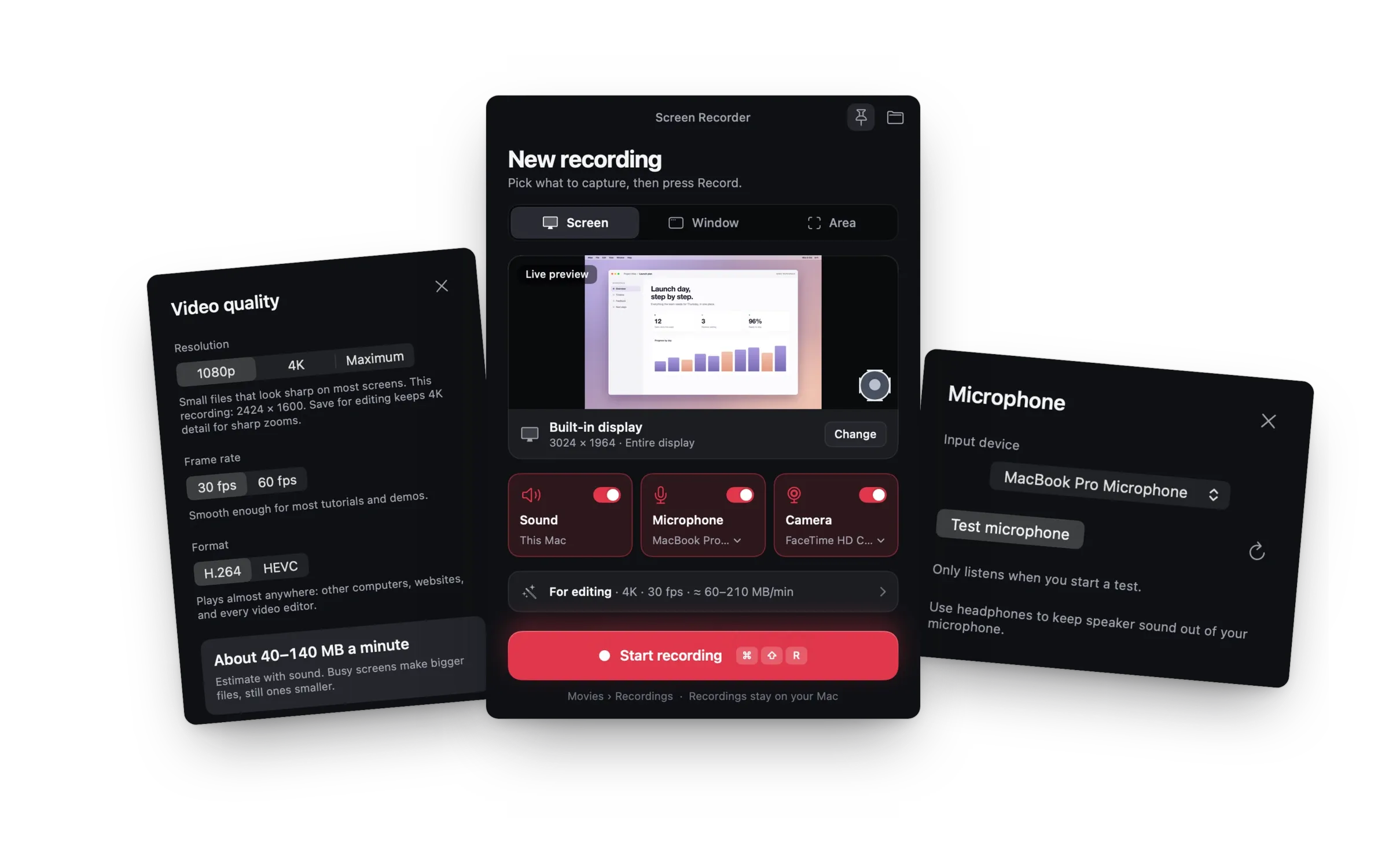
01. Choose exactly what belongs on screen.
Open the app and the specific document or workspace you need. Close unrelated windows and tabs. If a single window is enough to explain the task, keep your recording focused on that area.
02. Protect personal and private information.
Replace real customer details, account identifiers, messages, and payment information with fictional examples. Review the menu bar, bookmarks, recent files, and browser suggestions for anything you would not want to share.
03. Reduce interruptions.
Set up your preferred notification and Focus settings before recording. If the demonstration depends on an alert, prepare it deliberately. Otherwise, keep unexpected notifications out of the story.
04. Make a tiny test recording.
Use your current recording tool to capture a short sample. If you are speaking, listen for volume, echo, and background noise. Check that text is readable and the correct window is visible.
05. Keep a small outline nearby.
Write the opening sentence, the key actions, and the final takeaway. Avoid reading a dense script while navigating. Short prompts leave more room for a natural explanation.
06. Review before sharing.
Watch the full recording, including the first and last seconds. Check for private information, accidental pauses, and missing context. A quick review is usually more valuable than adding another effect.